About managing enterprise accounts with GraphQL
To help you monitor and make changes in your organizations and maintain compliance, you can use the Enterprise Accounts API and the Audit Log API, which are only available as GraphQL APIs.
The enterprise account endpoints work for both GitHub Enterprise Cloud and for GitHub Enterprise Server.
GraphQL allows you to request and return just the data you specify. For example, you can create a GraphQL query, or request for information, to see all the new organization members added to your organization. Or you can make a mutation, or change, to invite an administrator to your enterprise account.
With the Audit Log API, you can monitor when someone:
- Accesses your organization or repository settings.
- Changes permissions.
- Adds or removes users in an organization, repository, or team.
- Promotes users to admin.
- Changes permissions of a GitHub App.
The Audit Log API enables you to keep copies of your audit log data. For queries made with the Audit Log API, the GraphQL response can include data for up to 90 to 120 days. For a list of the fields available with the Audit Log API, see the Enterprise administration.
With the Enterprise Accounts API, you can:
- List and review all of the organizations and repositories that belong to your enterprise account.
- Change Enterprise account settings.
- Configure policies for settings on your enterprise account and its organizations.
- Invite administrators to your enterprise account.
- Create new organizations in your enterprise account.
For a list of the fields available with the Enterprise Accounts API, see Managing enterprise accounts.
Getting started using GraphQL for enterprise accounts
See Using GraphQL Clients to get started using GraphQL to manage your enterprise accounts.
For some example queries, see An example query using the Enterprise Accounts API.
1. Choose an authentication method
We recommend using a GitHub App for enterprise GraphQL operations that support it. GitHub Apps provide fine-grained permissions and short-lived tokens without relying on an enterprise owner's personal access token. Not all enterprise GraphQL queries and mutations support GitHub Apps. Use a personal access token for operations that do not support them.
Using a GitHub App
- Register a GitHub App and select the enterprise permissions needed for your operations. See Registering a GitHub App.
- Install the app on the enterprise you want to manage. If you are not an enterprise owner, you'll need to ask the enterprise owner to install it. See Installing a GitHub App on your enterprise.
- Authenticate with an installation access token or a user access token, depending on the operation and whether the app needs to act on behalf of a user. The Insomnia instructions below use a user access token.
An enterprise installation grants enterprise permissions only. It does not grant access to organizations or repositories in the enterprise. For organization or repository operations, the app needs separate installations on the relevant organizations and the appropriate permissions. Once installed in the organizations, your app can operate across them in a GraphQL query using a user access token. Installation tokens are locked to a single enterprise or organization account and cannot be used across account boundaries.
Using a personal access token
Use a personal access token if the operation you need does not support GitHub Apps, or if you are building automation to access multiple organizations or repository data in a single GraphQL query.
-
To authenticate with GraphQL with a personal access token, create one in the developer settings. For more information, see Managing your personal access tokens.
-
Grant admin and full control permissions to your personal access token for areas of your enterprise you'd like to access. For full permission to private repositories, organizations, teams, user data, and access to enterprise billing and profile data, we recommend you select these scopes for your personal access token:
repoadmin:orguseradmin:enterprise
The enterprise account specific scopes are:
admin:enterprise: Gives full control of enterprises (includesmanage_runners:enterprise,manage_billing:enterpriseandread:enterprise)manage_billing:enterprise: Read and write enterprise billing data.read:enterprise: Read enterprise profile data.
-
Copy your personal access token and keep it in a secure place until you add it to your GraphQL client.
2. Choose a GraphQL client
We recommend you use GraphiQL or another standalone GraphQL client that lets you configure the base URL.
You may also consider using these GraphQL clients:
The next steps will use Insomnia.
3. Setting up Insomnia to use the GitHub GraphQL API with enterprise accounts
- Add the base url and
POSTmethod to your GraphQL client. When using GraphQL to request information (queries), change information (mutations), or transfer data using the GitHub API, the default HTTP method isPOSTand the base url follows this syntax:- For your enterprise instance:
https://<HOST>/api/graphql - For GitHub Enterprise Cloud:
https://api.github.com/graphql - For GitHub Enterprise Cloud with Data Residency:
https://api.SUBDOMAIN.ghe.com/graphql
- For your enterprise instance:
Authenticate with a GitHub App
This procedure uses the OAuth 2.0 authorization code flow to obtain a GitHub App user access token, not an installation access token.
-
In your app's settings, set Callback URL to
http://localhost. This must exactly match the Redirect URL you use in Insomnia. -
Copy your app's Client ID, not its App ID. Generate and copy a client secret. Keep the secret secure and do not share it in screenshots or source code. This flow does not use the app's private key.
-
In Insomnia, select the Auth tab, then select OAuth 2.0. If you've previously selected a different authentication method, the tab may be labeled with that method.
-
Configure these settings with your own app's credentials.
Setting Value Enabled ✔️ Grant Type Authorization Code Authorization URL https:// github.com/ login/ oauth/ authorize Access Token URL https:// github.com/ login/ oauth/ access_token Client ID Your app's Client ID Client Secret Your app's client secret Use PKCE Selected Code Challenge Method SHA-256 Redirect URL http://localhostUsing default browser Leave unchecked unless your enterprise has SSO enabled, which may fail in Insomnia's embedded browser. If it has SSO enabled, check this box and follow the directions for updating your app's redirect URL Scope Leave empty. GitHub Apps use permissions from the app registration, not OAuth scopes. If you use GitHub Enterprise Cloud with data residency, replace
https://github.comin both OAuth URLs withhttps://SUBDOMAIN.ghe.com, whereSUBDOMAINis your enterprise's subdomain. Use the web URL, not theapi.SUBDOMAIN.ghe.comhostname. -
Click Fetch Tokens, sign in, and authorize the app as a user with the required enterprise permissions. The user access token is limited to the permissions and resources that both the user and the app can access. Insomnia uses the fetched token for your requests.
For more information, see Generating a user access token for a GitHub App.
Authenticate with a personal access token
If you use a personal access token instead, configure bearer authentication.
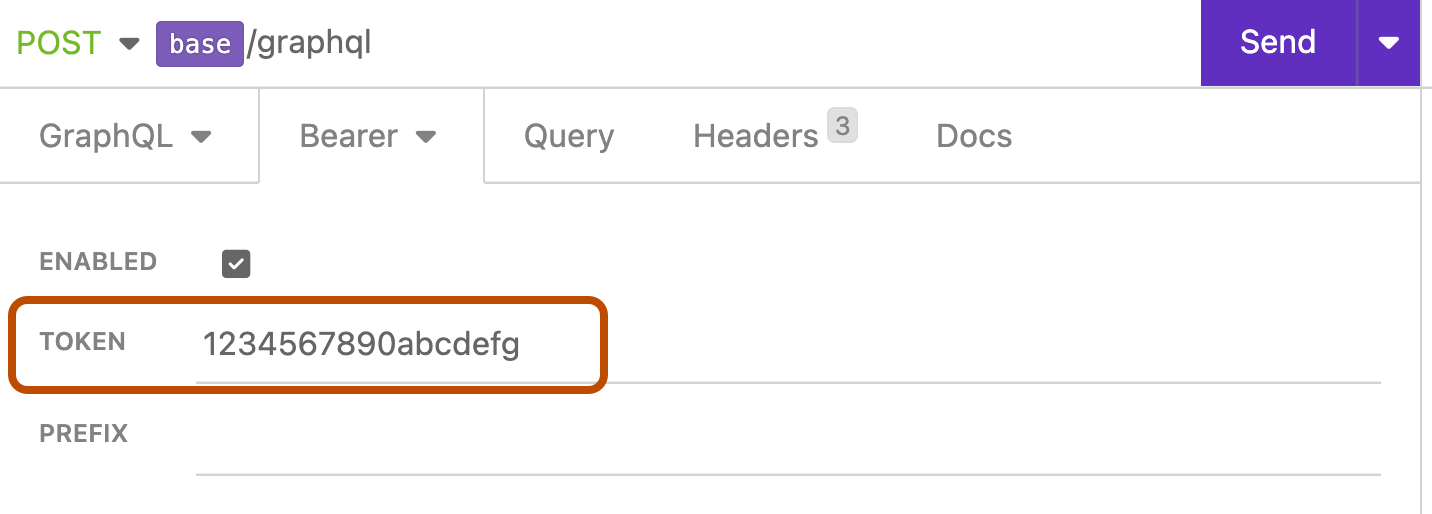
- Select the Auth menu and click Bearer Token. If you've previously selected a different authentication method, the menu will be labeled with that method, such as "Basic Auth", instead.
- In the "TOKEN" field, enter your personal access token from an earlier step.

Set the content type
After configuring your authentication method, set the request's content type.
- Click Headers.

- Under the Headers tab, click Add.
- In the "header" field, enter
Content-Type. - In the "value" field, enter
application/json.

Now you are ready to start making queries.
An example query using the Enterprise Accounts API
This GraphQL query requests the total number of public repositories in each of your appliance's organizations using the Enterprise Accounts API. To customize this query, replace <enterprise-account-name> with the handle for your enterprise account. For example, if your enterprise account is located at https://github.com/enterprises/octo-enterprise, replace <enterprise-account-name> with octo-enterprise.
query publicRepositoriesByOrganization($slug: String!) {
  enterprise(slug: $slug) {
    ...enterpriseFragment
  }
}

fragment enterpriseFragment on Enterprise {
  ... on Enterprise{
    name
    organizations(first: 100){
      nodes{
        name
        ... on Organization{
          name
          repositories(privacy: PUBLIC){
            totalCount
          }
        }
      }
    }
  }
}

# Passing our Enterprise Account as a variable
variables {
  "slug": "<enterprise-account-name>"
}
The next GraphQL query example shows how challenging it is to retrieve the number of public repositories in each organization without using the Enterprise Account API. Notice that the GraphQL Enterprise Accounts API has made this task simpler for enterprises since you only need to customize a single variable. To customize this query, replace <name-of-organization-one> and <name-of-organization-two>, etc. with the organization names on your instance.
# Each organization is queried separately
{
  organizationOneAlias: organization(login: "nameOfOrganizationOne") {
    # How to use a fragment
    ...repositories
  }
  organizationTwoAlias: organization(login: "nameOfOrganizationTwo") {
    ...repositories
  }
  # organizationThreeAlias ... and so on up-to lets say 100
}

## How to define a fragment
fragment repositories on Organization {
  name
  repositories(privacy: PUBLIC){
    totalCount
  }
}
Query each organization separately
query publicRepositoriesByOrganization {
  organizationOneAlias: organization(login: "<name-of-organization-one>") {
    # How to use a fragment
    ...repositories
  }
  organizationTwoAlias: organization(login: "<name-of-organization-two>") {
    ...repositories
  }
  # organizationThreeAlias ... and so on up-to lets say 100
}
# How to define a fragment
fragment repositories on Organization {
  name
  repositories(privacy: PUBLIC){
    totalCount
  }
}
This GraphQL query requests the last 5 log entries for an enterprise organization. To customize this query, replace <org-name> and <user-name>.
{
  organization(login: "<org-name>") {
    auditLog(last: 5, query: "actor:<user-name>") {
      edges {
        node {
          ... on AuditEntry {
# Get Audit Log Entry by 'Action'
            action
            actorLogin
            createdAt
# User 'Action' was performed on
           user{
              name
                email
            }
          }
        }
      }
    }
  }
}
For more information about getting started with GraphQL, see Introduction to GraphQL and Forming calls with GraphQL.
GraphQL fields and types for the Enterprise Accounts API
For more details about the new queries, mutations, and schema defined types available for use with the Enterprise Accounts API, see the sidebar with detailed GraphQL definitions from any GraphQL reference page.
You can access the reference docs from within the GraphQL clients. For more information, see Using GraphQL Clients. For other information, such as authentication and rate limit details, check out the guides.