You can start a GitHub Copilot task by assigning an issue, describing the work in a prompt, or asking Copilot to scaffold a new repository. When you start with a prompt, Copilot begins a session that you can steer with follow-up prompts. You can ask it to open a pull request, or review its changes in the session and create a pull request when you're ready.
Assign an issue to Copilot
Assigning an issue always creates a pull request. Copilot works on the task and requests your review when it finishes.
-
In the right sidebar of the issue, click Assignees.
-
Click Copilot from the assignees list.
-
Optionally, add context in the Optional prompt field—for example, coding patterns, files to modify, or testing requirements.
-
Optionally, change the target repository or base branch using the dropdown menus.
-
Optionally, you can click to open the agent dropdown menu, if you want to assign an agent or a custom agent with specialized behavior and tools. You can select an existing custom agent from your repository, organization, or enterprise. You can also click Create an agent to create a new agent profile in your selected repository and branch. For more information, see Creating custom agents for Copilot cloud agent.
Note
Third-party coding agents are available for all paid Copilot plans.
-
Optionally, you can use the dropdown menu to select the model that Copilot will use. If the selected model supports configurable reasoning, you can also use the dropdown menu to select the reasoning level. For more information, see Changing the AI model for GitHub Copilot cloud agent.
Copilot receives the issue title, description, and existing comments at assignment time. It does not see comments added after assignment, so post follow-up information on the pull request instead.
Start a task with a prompt
Start a GitHub Copilot task from:
- A Copilot prompt
- By using the "Get started with agents" suggested prompts section shown on the agents tab or Copilot home page
-
Open the agents panel or tab:
- Open the Agents tab in a repository.
- Navigate to the GitHub Copilot all sessions page: Go to github.com/copilot. You can also get here by opening the GitHub Copilot menu in top navigation bar, then clicking View all sessions.
- Open the agents panel: From the code tab in a repository, click to the right of the "Go to file" search bar.
-
Using the dropdown menu in the prompt field, select the repository you want Copilot to work in.
-
Open Environment to choose where Copilot runs.
- Cloud: (default) Run in a GitHub-hosted cloud sandbox.
- Actions: Run in an GitHub Actions-based environment. If you've previously selected a Chat session context, you cannot select this environment for the session.
- Environments: Expand the list and select one of the listed remote environments.
-
Type a prompt describing your request. You can also add visual inputs like screenshots or UI mockups by pasting, dragging, or uploading an image. Files supported: image/png, image/jpeg, image/gif, image/webp.
For example,
Implement a user friendly message for common errors.If you want Copilot to open a pull request, you can ask in your prompt, for example
Open a pull request to implement a user friendly message for common errors. -
Optionally, select a base branch for Copilot's changes. Copilot will create a new branch based on this branch.
-
Optionally, you can click to open the agent dropdown menu, if you want to assign an agent or a custom agent with specialized behavior and tools. You can select an existing custom agent from your repository, organization, or enterprise. You can also click Create an agent to create a new agent profile in your selected repository and branch. For more information, see Creating custom agents for Copilot cloud agent.
Note
Third-party coding agents are available for all paid Copilot plans.
-
Optionally, you can use the dropdown menu to select the model that Copilot will use. If the selected model supports configurable reasoning, you can also use the dropdown menu to select the reasoning level. For more information, see Changing the AI model for GitHub Copilot cloud agent.
-
Click or press Enter.
Copilot will start a new session, which will appear in the list below the prompt box. Copilot will work on the task and push any code changes.
You can track Copilot's work and open a pull request in one click from the session logs. For more information, see Managing agent sessions.
If you don't specify a repository to work in, Copilot will prompt you to select one. To start a session, describe the outcome you want and any constraints. Copilot can work on the changes in a session that you steer with follow-up prompts. Ask it to open a pull request in your prompt, or review its changes and open a pull request from the session when you're ready.
For the full workflow of researching, planning, and iterating before creating a pull request, see Research, plan, and iterate on code changes with Copilot.
Seed a new repository
When you create a new repository, you can have Copilot generate starter code.
-
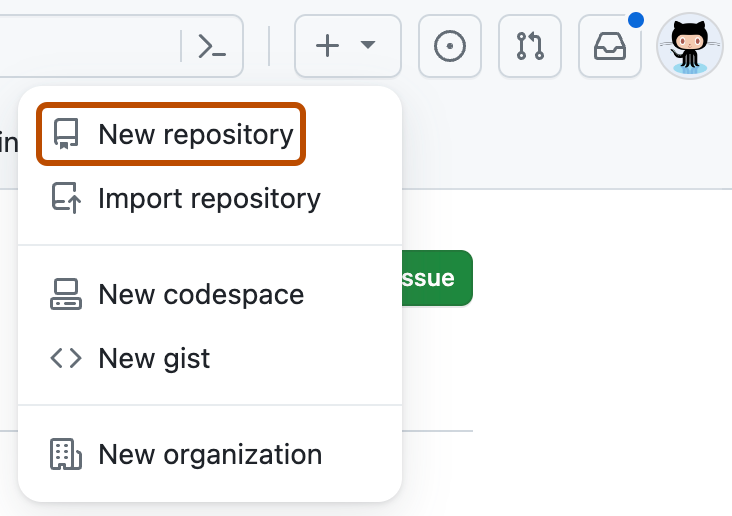
In the upper-right corner of any page, select , then click New repository.
-
In the Prompt field, describe what you want Copilot to build — for example,
Create a Rust CLI for converting CSV spreadsheets to Markdown. -
Click Create repository.

Copilot opens a draft pull request with the scaffolded code.